





Getting started
From "never heard of it" to a working bot on your server in about five minutes.
What you need
- A Discord account, and the Manage Server permission on the server you want to set up (the owner has it; admins usually too).
- Nothing else: no credit card, no registration. You log in to the dashboard with Discord; Pangobot never sees your password.
Step by step
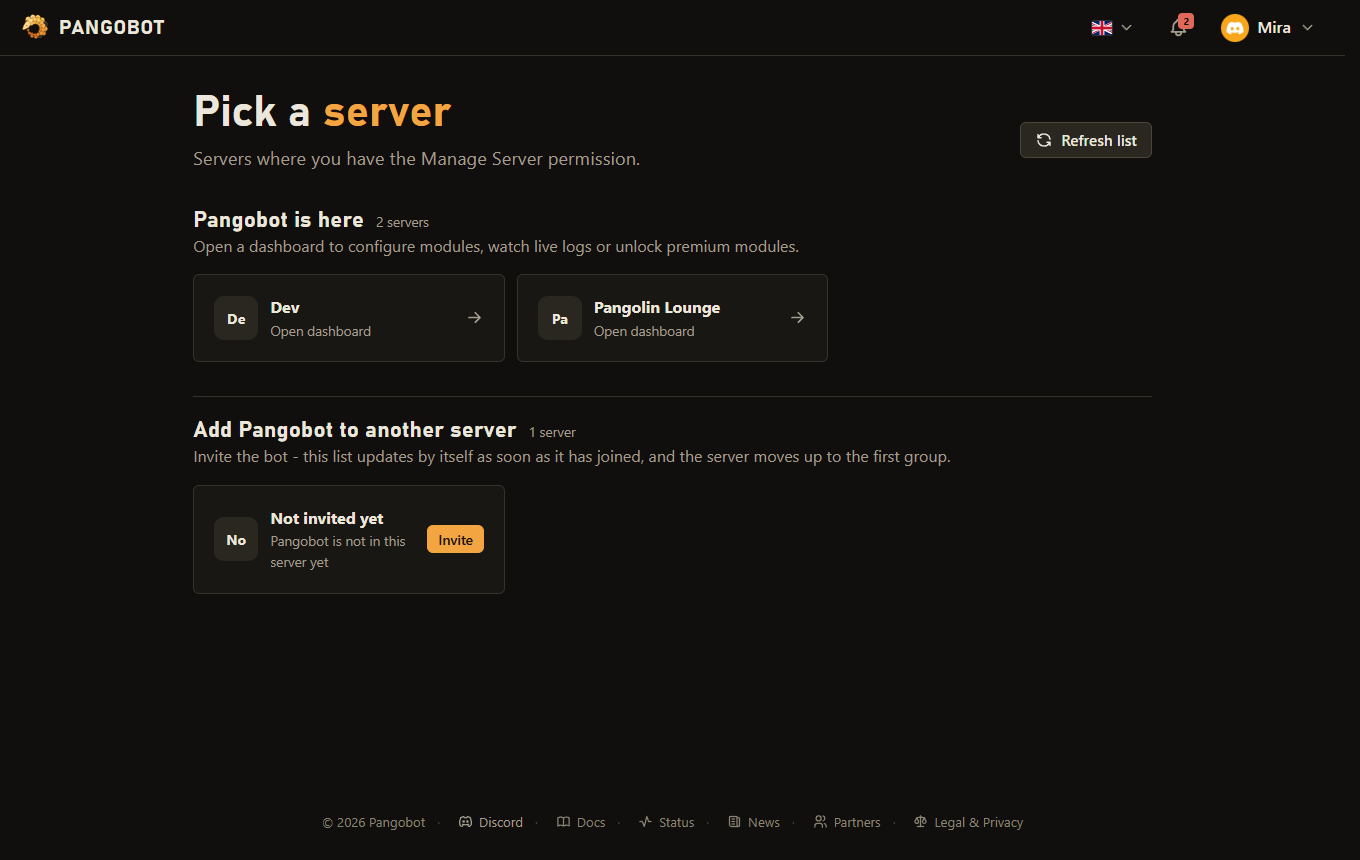
- Open the dashboard and log in with Discord. You see the servers you may manage.
- Pick a server where Pangobot is not yet present and press Invite. Discord asks which permissions to grant - leave them as suggested, modules that lack one tell you so.
- Back in the dashboard the server opens on its Overview: one tile per module. A module does nothing until you switch it on - except Moderation, which is on from the start and sends punished members a direct message (both can be switched off).
- Open a module with Configure, set its channel or roles, press Save changes, then flip the switch at the top right to Enabled.
- In Discord,
/moduleslists every module with its state (on, off or locked);/helpgives a short overview of the main commands.
Three things that save an hour of searching
- Role order. Discord lets a bot hand out or remove only roles that are below its own role. Drag Pangobot's role above the roles it should manage (Server Settings > Roles). The dashboard marks roles it cannot give.
- Channel permissions. In a private channel the bot needs View Channel, Send Messages and Embed Links like anybody else. "Missing access" in the dashboard's problem list means exactly this.
- Who may use a command is decided by Discord: every command page here names the default, and admins can change it per command under Server Settings > Integrations > Pangobot.
A sensible first setup
- Moderation with a mod-log channel, and Logging with at least a message log.
- AutoMod: invite links and mass mentions are the two filters nearly every server wants.
- Welcome & Goodbye and Join Roles for newcomers, Role Menus for self-assignable roles.
All of the above is free. Premium modules show every setting as a read-only preview, so you can look before you buy - see Free and premium.